Step-by-step workflow guide
Getting started with AIM
A practical walkthrough from your secure organization invitation and first assessment through governed analysis, procurement-ready outputs, architecture decisions, delivery, sustainment, and Mission Control observation.

Part 1 walkthrough
Account setup & first assessment
Watch a provisioned organization move from first login through team setup, systems registry, and the guided assessment wizard — ending in the assessment workspace before recommendations run.
Part 2 walkthrough
Recommendations, architecture & decision outputs
Continue from the completed intake: strengthen the record, generate vendor-neutral recommendations, edit the architecture diagram, and produce sector-matched documents and lifecycle cost — including audited edits and version history.
Part 3 walkthrough
Delivery, sustainment & observation
After the decision: record the award, run Project Pulse delivery governance, graduate into Pulse Sustainment for as-built change control, and use Mission Control for read-only observation — without production mutation.
Part 4 walkthrough
Trust, teamwork & ownership cost
Close the series: Work Queue and roles, guest collaborators, Help and Eagle, decision provenance, and lifecycle affordability — including Layer 1 when physical scope is in play — so leadership can defend the trail after decide, deliver, sustain, and observe.
The AIM Workflow at a Glance
Steps 1–2
Set Up & Create
Invitation, org, first assessment
Steps 3–5
Build Inputs
Follow-up questions & constraints
Steps 6
Run the Analysis
Generate recommendations
Steps 7–10
Get Your Outputs
Docs, diagrams, procurement
Steps 11–12
Share & Collaborate
Stakeholders & vendor brief
Steps 13–15
Project Pulse
Post-award delivery record
Steps 16–17
Sustainment
As-built baseline and change control
Steps 18
Mission Control
Observation and human review packages
Phase 1
Set Up Your Organization
Before creating an assessment, your organization must be configured. If you're joining an existing org, ask your Admin or Owner to invite you.
Create your account and configure your organization
After procurement and onboarding, AIM provisions the organization workspace. An authorized administrator then invites users and assigns the Owner and other governed roles.
- Set your organization sector — this is one of the most important settings in AIM.
- Invite teammates from your Dashboard → Members panel.
- Roles from most to least access: Owner Admin Engineer Program Analyst Reviewer Viewer
- Engineers and Program Analysts can run analysis and generate the documents their role allows. Reviewers can approve and flag. Viewers can read and export only.
The organization name and sector (Federal, State/Local, Healthcare, Commercial, etc.) you set here determine which documents, compliance frameworks, and procurement artifacts AIM will surface throughout your work. Federal orgs see IGCE, RFP, and Acquisition Strategy tools. Healthcare orgs see ROI and HIPAA-specific outputs.
Phase 2
Create Your Assessment
The assessment is your project's data foundation. Everything AIM generates — every score, every document, every diagram — traces back to what you enter here.
Start a new assessment
From your Dashboard, click New Assessment. A 3-step wizard walks you through the required inputs:
Step 1 — Project Identity *
- Assessment name — a short descriptive title for this project
- Organization name — the agency, department, or business this project is for
- Project archetype — what kind of modernization project is this? (AIM offers 10 types: Cloud Migration, Legacy Modernization, Security Hardening, Network Refresh, ERP Implementation, Data Platform, AI/ML Integration, and others)
- Scope areas — select the technology domains in scope: Network/Infrastructure, Applications/Platforms, Data & Integrations, Security/Zero Trust, Compliance/Regulatory, AI & Automation
Step 2 — Governance & Environment *
- Environment type — on-prem, cloud, hybrid, or multi-cloud
- Budget band — approximate project budget range (even “Not sure” is a valid choice)
- Risk tolerance — how much operational risk is acceptable during the transition
- Staffing capacity — internal team availability for the project
- Regulatory scope — select all that apply (HIPAA, FISMA, FedRAMP, CJIS, PCI-DSS, CMMC, FERPA…) or “None applicable”
Step 3 — Constraints, Context & Systems (Recommended)
- Known constraints — describe your real-world limits in plain language: timelines, budget ceilings, political constraints, legacy dependencies, uptime requirements. AIM extracts structured signals from your plain-text description automatically.
- Current systems — list your existing platforms, applications, and infrastructure
- Integrations — describe how systems currently connect and where data flows
- Sustainment planning — enable if you want 3- and 5-year TCO and operational cost projections. Year 1 is shown on its own inside either horizon.
After submission, you'll land in your Assessment Workspace — the central hub for all inputs, outputs, and documents for this project.
You don't need to have all the answers upfront. Only the mandatory fields (*) are required to create the assessment. You can fill in everything else later — especially in the Smart Follow-Up tab after submission.
Add collaborators (optional, but recommended for complex projects)
In your Assessment Workspace sidebar, navigate to Collaborators. There are two types of access:
- Internal team members — org members already in your organization. Add them to your org first (Admin/Owner → Members), then they can access any assessment they're assigned to.
- Guest collaborators — external stakeholders (architects, agency partners, vendors). Enter their email address and choose a role: Viewer, Commenter, or Contributor. They receive a one-time email link to access this specific assessment only.
Guest collaborators cannot generate reports. Every access event is logged in the audit trail.
Guest collaborators can access the assessment via a secure email link — no AIM account required and no seat consumed. This is ideal for subject matter experts, contracting officers, or partner agencies who need to contribute answers or review outputs.
Phase 3
Strengthen Your Inputs
Before running the analysis, give AIM as much accurate data as possible. A higher Signal Strength score means more precise recommendations and stronger document language.
Signal Strength Tiers
Core fields provided. AIM shows the confidence of the estimate and the assumptions behind it. The report gets more precise as you add signals.
Most key signals present. Recommendations are well-scoped with moderate cost confidence. Good enough for preliminary planning and internal review.
Full signal set. RAO scoring and cost modeling are precise. Reports carry maximum authority — suitable for procurement and executive briefings.
Signal strength is computed from the evidence you provide — environment type, budget, regulatory scope, system inventory, integration detail, constraints, staffing, timeline, and related fields. Answering any follow-up question immediately updates your score.
Answer your Smart Follow-Up questions
In your Assessment Workspace sidebar (under Inputs), navigate to Smart Follow-Up. AIM has already analyzed your submission and identified which signals are missing.
- AIM generates a bounded set of targeted, personalized questions — only what's missing for your specific project.
- Questions scoped to domains you didn't select are automatically skipped.
- Any signals AIM already detected from your free-text constraints are pre-filled or bypassed.
- Each answer updates your Signal Strength score instantly.
- You can re-run follow-up question generation at any time using “Re-Analyze” if you've updated your assessment.
Target: aim for High Confidence (75+) before generating final deliverables intended for procurement or executive review. Standard confidence is sufficient for internal planning and preliminary analysis.
Questions are pre-ordered by confidence impact — the top question is always the one that will raise your score the most. If you can only answer a few, start at the top.
Normalize your constraints
In your Assessment Workspace sidebar (under Inputs), navigate to Constraints & Requirements. Click Normalize Constraints.
AIM's Constraint Normalizer converts your free-text descriptions into structured, coded constraint records:
After normalization, AIM also automatically runs Regulatory Detection — identifying which compliance frameworks apply based on your constraints and selected regulatory scope.
Optional: Click Update Risk Summary to pre-populate your Risks & Priorities section before running the full analysis.
Constraints are referenced by their C-code in every recommendation and document. C-1 through C-7+ are the traceable backbone of AIM's auditability — a reviewer can look at any recommendation and see exactly which real-world constraints it honors.
If you didn't enter any constraints during the wizard (Step 2), you can add them directly in the Constraints & Requirements section before normalizing. Even rough plain-language descriptions work — AIM's normalizer handles the classification.
Phase 4
Run the Analysis
This is the main trigger. One click starts AIM analysis and unlocks the output sections in your workspace.
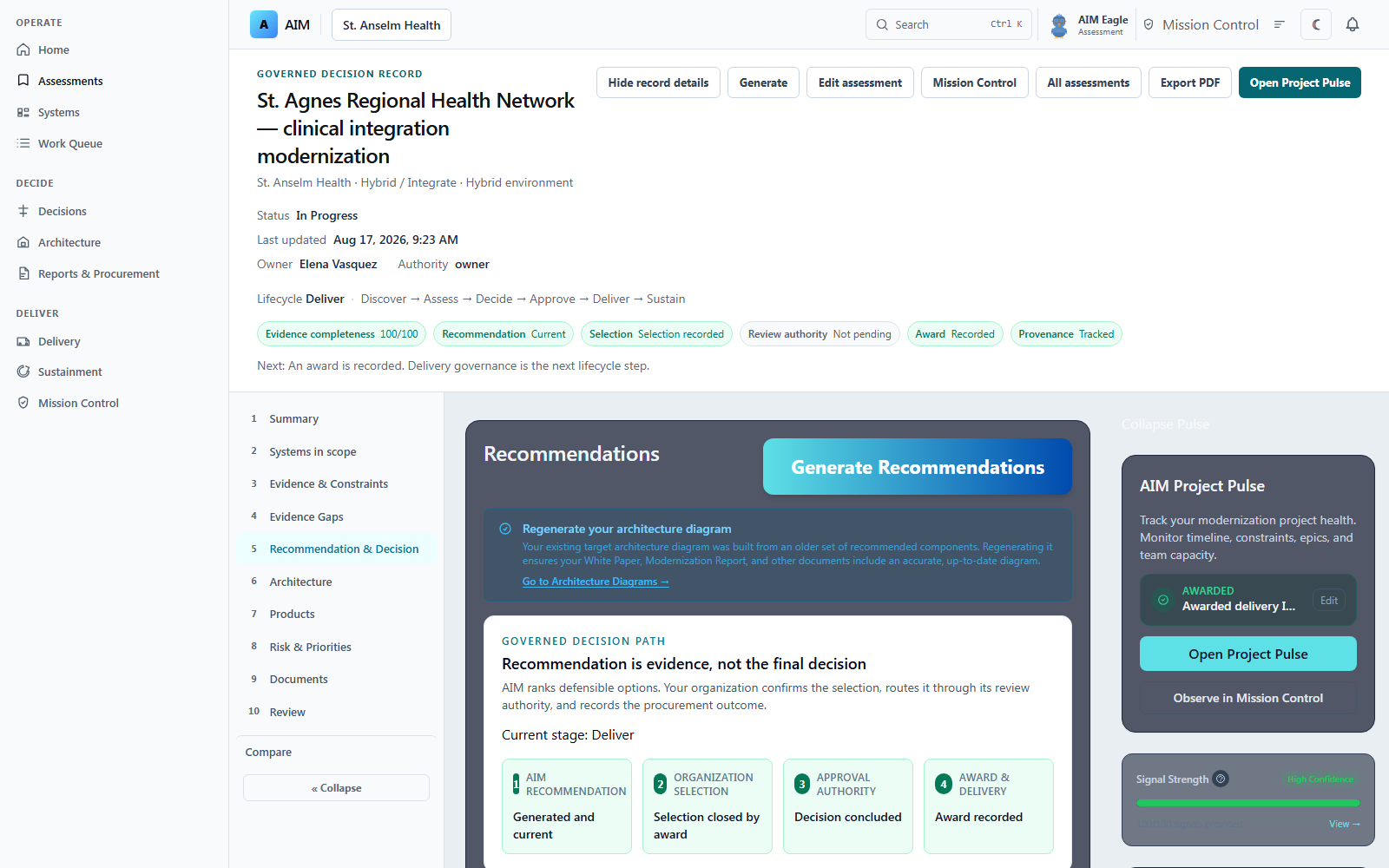
Generate Recommendations
When you first open a new assessment, the Overview section displays a prompt with two quick-action buttons:
Go to Reports & Exports
Jump straight to the Reports tab to generate a full document suite — executive summary, white paper, IGCE, and more — all in one place.
Generate Recommendations Only
Generate scored recommendations without immediately producing documents. Use this to review and validate the analysis first.
You can also trigger either action from the bottom action bar in the workspace at any time.
What happens automatically when you click Generate:
Context assembly
AIM builds your structured context package — a curated, normalized representation of your situation that AI models are allowed to work within. Raw answers are never passed directly to AI.
Modernization focus classification
AIM classifies your primary modernization archetype from your signals so later scoring reflects that focus.
RAO scoring
Evaluates catalogued products against your constraints. Every product uses six core dimensions; Supply Chain Assurance becomes a seventh only when current product evidence and explicit organizational tolerance exist.
Recommendations ranked
Products are ranked Must Have (80 or higher), Strong Candidate (65–79), Consider (50–64), or Avoid (below 50). Each recommendation cites which constraints it addresses by C-code.
Basic report generated
A structured assessment report is created and saved to your Reports & Exports tab.
Architecture diagram auto-generated
A Target Architecture Diagram (Phase 1) is automatically built from your recommendations. All output sidebar sections unlock.
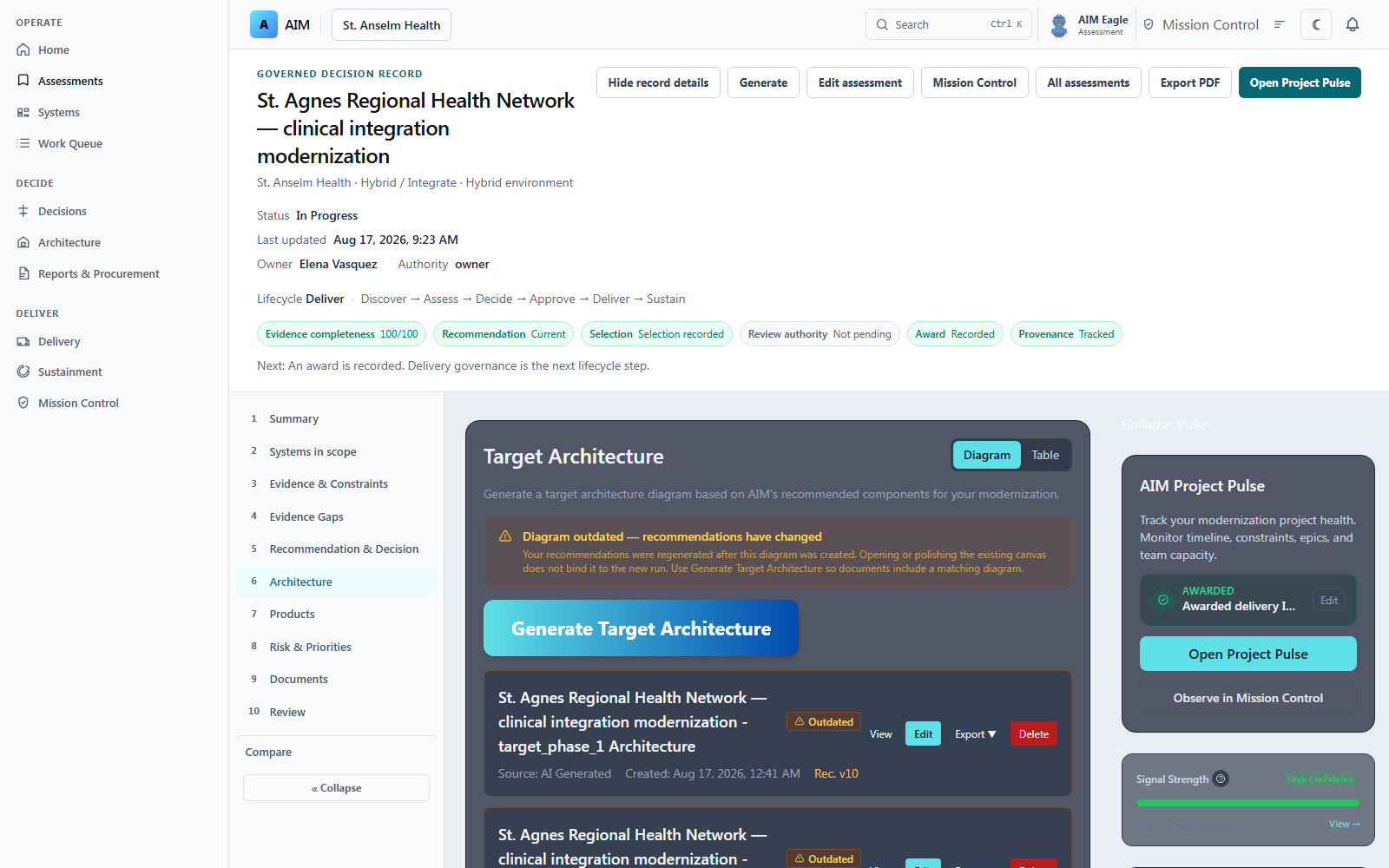
You can regenerate recommendations at any time after adding more follow-up answers or updating your constraints. The architecture diagram will show a 'stale' indicator if it's from an older recommendation version — you can regenerate it separately.
This action is available when procurement artifacts are enabled for your organization.
Phase 5
Review Your Outputs
After generating recommendations, your output sections unlock. Review each before generating final documents.
Review your Recommendations
Navigate to Recommendations in your sidebar. You'll see a ranked list of modernization paths organized by Tier:
- Must Have — Score of 80 or higher. AIM's primary recommendations for your constraints and environment.
- Strong Candidate — Score of 65 to 79. A viable path with notable trade-offs relative to Must Have.
- Consider — Score of 50 to 64. Included so the trade-offs stay visible.
- Avoid — Score below 50. Significant fit concerns for this assessment.
Each recommendation shows its RAO score, a dimension breakdown (Security, Compliance, Cost, etc.), and which C-codes it addresses. If you have existing infrastructure or client preferences outside AIM's scored catalog, you can add them as user-defined constraints — they'll appear in all generated documents with a clear “user-defined” designation.
Use the Product Catalog Query widget in Recommendations to investigate specific products. AIM can explain why a product ranked where it did using its scores, constraint fit, and competitor comparisons; explanations are cached for consistent re-reads.
Review your Architecture Diagram
Navigate to Architecture Diagrams in your sidebar. Your Target Phase 1 diagram was auto-generated. From here you can:
- Generate additional diagram types: Legacy (current state), Target Phase 2, Target Phase 3
- Manually move nodes in the diagram editor to adjust the layout
- Click ✦ AI Polish to improve layout — AIM reorganizes nodes into logical tiers and reduces crossing edges
- Regenerate any diagram phase at any time if recommendations changed
The architecture diagram is directly referenced in the White Paper and Implementation Guide. Review and finalize it before generating those documents. The system will warn you if the diagram is stale when you attempt to generate the White Paper.
Check Risks & Priorities
Navigate to Risks & Priorities in your sidebar. AIM surfaces:
- Single-vendor dependence on critical platforms
- End-of-life or deprecated technologies in your current stack
- Unencrypted or fragile data flows identified from your integration descriptions
- Gaps between your stated requirements and the assessed current state
- Integration “hot spots” — choke points where many systems depend on a single connection
If this section appears thin, return to Constraints & Requirements and click Update Risk Summary to run a fresh analysis.
Phase 6
Generate Your Documents
AIM turns your scored assessment into procurement-ready deliverables. Available document types are determined by your organization's sector.
Generate strategic and procurement documents
From the bottom action bar in your Assessment Workspace, select the documents you need. AIM automatically shows only the document types relevant to your organization's sector.
Available to all organizations
Contract-enabled deliverables
Executive Summary
Modernization brief for leadership. Current state, recommended path, priority table, risk analysis, and phased roadmap.
Implementation Guide (White Paper)
Full technical white paper. Detailed architecture, migration approach, and cost narrative. Finalize your architecture diagram before generating.
Generate RFP
Full solicitation package with evaluation criteria, technical requirements, and milestone-based payment schedule.
Translate to Format
Upload your existing procurement template (DOCX, PDF, or XLSX) and AIM translates your assessment data into that format when document translation is enabled for your organization.
Cached artifact
Vendor Brief
Structured summary for prospective implementation partners. AIM generates it once and stores it — subsequent views reload the saved version at no additional cost.
Analysis tools
TCO Calculator
Included3- and 5-year total cost of ownership. Year 1 is shown on its own so startup cost stays visible. Covers IT labor, software licensing, cloud hosting, hardware, integration labor, and compliance overhead.
Compliance Check
IncludedGap analysis against your declared regulatory scope (HIPAA, CJIS, FedRAMP, PCI-DSS, etc.).
What-If Analysis
IncludedScenario modeling — compare how your recommendations and costs shift under different constraint assumptions.
Federal regulatory context — additional procurement artifacts
When an assessment has a federal regulatory context — FedRAMP, CMMC, ITAR/DFARS, or a federal domain archetype — AIM automatically reveals three additional procurement artifacts below the standard action grid. These buttons are hidden for all other sectors (state/local, healthcare, commercial, education) and only appear when required by the assessment's regulatory scope.
Generate IGCE
Federal onlyIndependent Government Cost Estimate (FAR 36.203). Phased labor hour parametric model with BOE citations to GSA OASIS+, OMB A-11, and COCOMO II. Required by federal contracting officers before award.
Market Research
Federal onlyFAR Part 10 Market Research Report. Documents the government's research into available commercial sources, pricing, and acquisition alternatives. Required before any competitive acquisition.
Acq. Strategy
Federal onlyFAR 7.105 Acquisition Strategy / Technology Acquisition Plan. Defines the competitive approach, contract type, evaluation factors, and period of performance. Required for most federal IT procurements.
These artifacts are surfaced automatically — no configuration required. If you have a federal assessment and do not see them, verify that your assessment's regulatory scope includes FedRAMP, CMMC, ITAR/DFARS, or that your domain archetype is set to Federal Government, Federal Civilian, or Federal DoD.
Documents can be regenerated at any time — if you improve your Signal Strength score or update your recommendations, regenerate to reflect the improved confidence level in the document language.
Share outputs with stakeholders
- Collaborators panel — invite external stakeholders to review documents in-platform via OTP email access. No AIM account required.
- Vendor Brief subpage — navigate to the Vendor Brief subpage (/assessments/[id]/vendor-brief) to share a structured summary with prospective implementation partners.
- Reports & Exports tab — download any generated document from the Reports & Exports section in your sidebar.
- Document review workflow — Reviewers in your organization can be assigned to approve and flag specific documents before they leave the platform.
Phase 7
Project Pulse — Post-Award Project Management
Once a vendor is selected and the project is approved, Project Pulse activates. It tracks active implementation through epics, phases, check-ins, and a live health score.
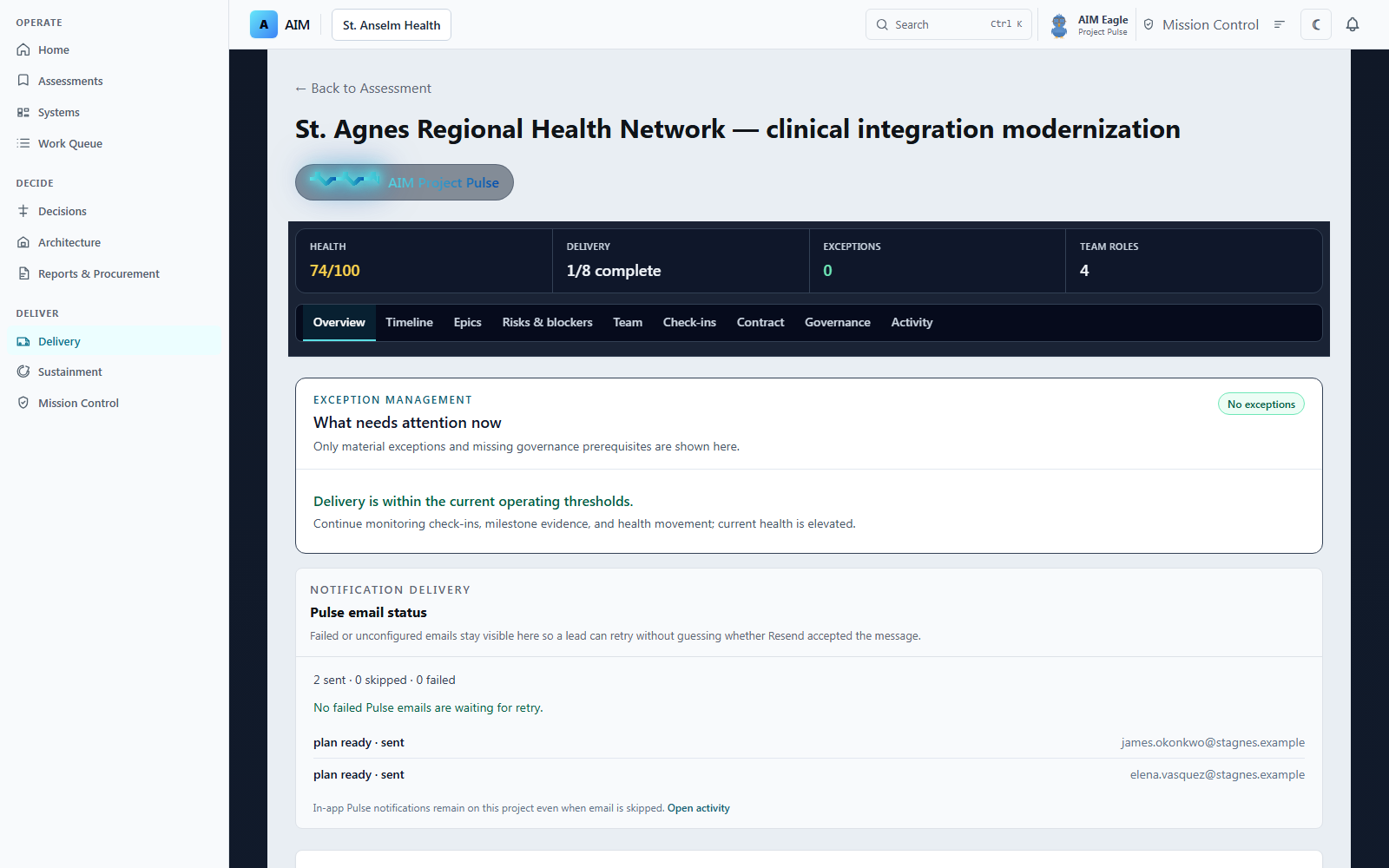
Prerequisite: Project Pulse requires at least one current recommendation (generated in Step 6) and Pulse enabled on the organization agreement. The full Pulse workflow is available at /assessments/[id]/project-pulse.
Activate Project Pulse
Navigate to your assessment and open Project Pulse from the sidebar or go directly to /assessments/[id]/project-pulse.
On first open, AIM automatically generates:
- Epics — major modernization phases derived from your recommendations (e.g., “Identity Modernization,” “Cloud Migration,” “Data Platform Build-out”)
- Phases — time-boxed implementation windows within each epic with suggested timelines
- Team Roles — recommended staffing profile for the implementation based on your archetype and scope
Pulse is designed to replace the need for separate project tracking spreadsheets. The epics and phases AIM generates are directly derived from your assessment recommendations — this isn't a generic project template, it's a plan specific to your technology modernization scope.
Record a vendor award
Once you've selected a vendor and the project is formally approved, use the Award Record panel in Project Pulse to document:
- Vendor name and contract value
- Award date and period of performance
- Contract type (FFP, T&M, IDIQ, etc.)
Recording the award is what activates the 'Open Project Pulse' button in your assessment workspace sidebar. It's also the event that starts AIM's project intelligence accumulation for this engagement.
Manage your active project
Once the project is underway, your ongoing activities in Project Pulse include:
Submit check-ins
Weekly or milestone-based check-ins keep your health score current. Submit from the dashboard or by replying to AIM's scheduled check-in email.
Attest epic completion
Mark epics as delivered when milestones are met. AIM automatically records whether delivery was on time and flags any blockers that occurred — building outcome data for future project intelligence.
Track Health Score
Auto-computed from your check-in data, epic completion status, and logged blockers. Green (healthy), Yellow (watch), Red (at risk).
Log blockers
Flag issues impeding progress. Blockers are tracked in the Blockers panel and factored into health score calculations.
Share the Stakeholder Snapshot
Generate a public URL with a read-only project health view for executives and oversight stakeholders.
View milestone digest
A consolidated status summary showing upcoming milestones, epic progress, and any open blockers.
The Stakeholder Snapshot URL is a public read-only view of your project's current health, milestone status, and epic progress. Share it with executives or oversight stakeholders who don't need (or shouldn't have) platform access.
Start a follow-on assessment when the project evolves
When your project completes, scope changes significantly, or a new modernization cycle begins, AIM supports Follow-On Assessments. From your Dashboard, archived assessments offer a Create Follow-On option.
- Organizational context, signals, and assessment lineage carry forward automatically
- AIM classifies the relationship in plain language as follow-on work, a rescope, or a full refresh
- Each engagement cycle adds to AIM's accumulated intelligence for your organization — improving accuracy and relevance over time
Phase 8
Pulse Sustainment — After Delivery
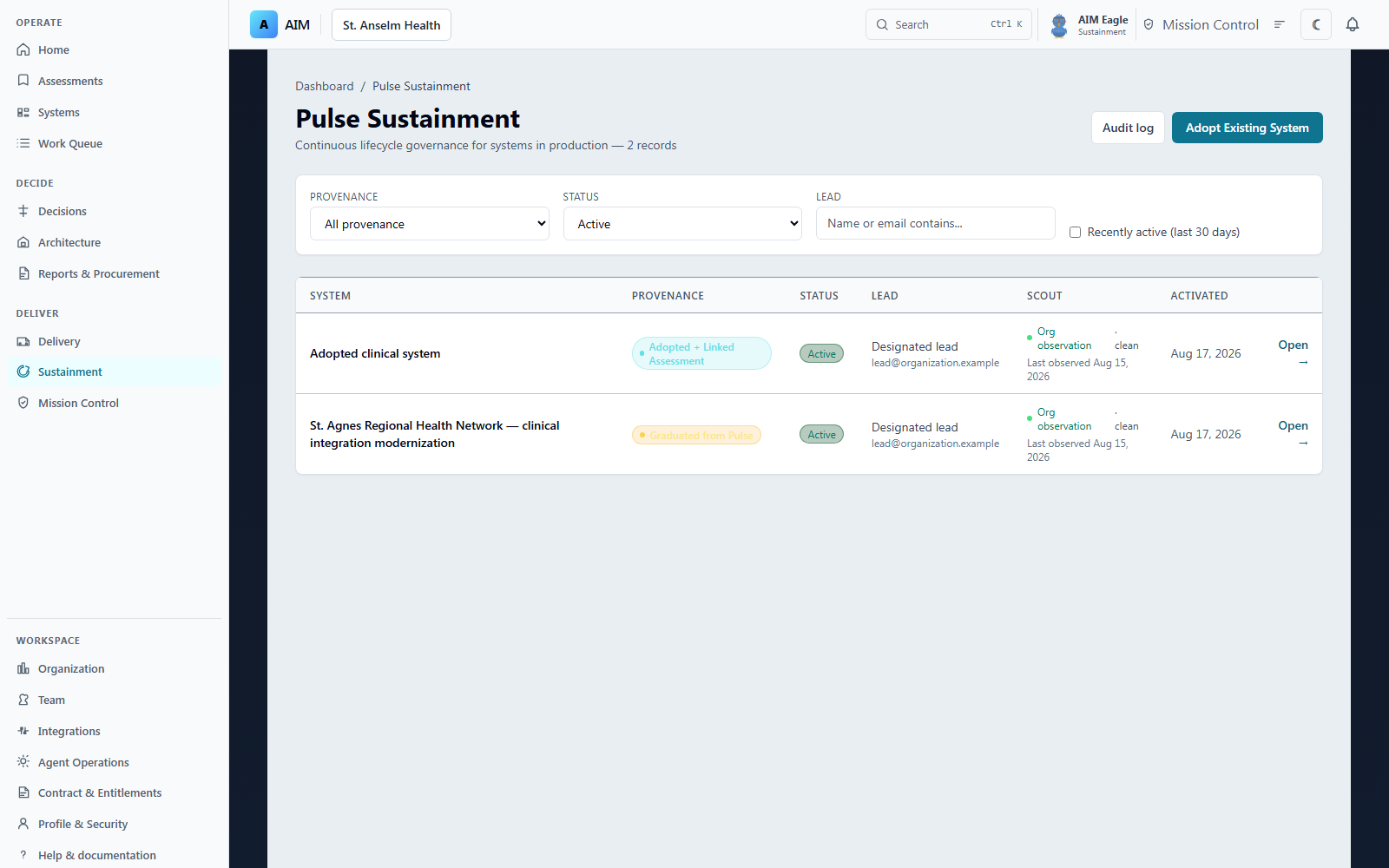
When implementation is complete, freeze the as-built baseline and keep the operational record attached to the original decision.
Graduate from Pulse or adopt a running system
Open Sustainment in the left rail. If Project Pulse has reached its final attested milestone, an Owner or Admin can graduate that Pulse into Pulse Sustainment Mode. If the system already runs and never had a Pulse, use Adopt Existing System.
- Assign a Designated Lead and a Backup Lead. Only Owner, Admin, or Engineer may be named.
- Change requests, board votes, configuration events, compliance events, and procurement actions stay attached to this baseline.
- Quorum and a written vote comment are required on purpose — they are the operational audit trail.
Graduation is one-way. The Pulse record becomes the as-built baseline and cannot be unwound. Adopt an existing system when the work did not start in AIM.
Use Scout to see the live environment
When Scout is enabled for the organization, it compares live environment evidence from a customer-hosted gateway with the documented systems in Sustainment. A Lead can promote a finding into a change request. That decision stays with a person. Scout's job is the current picture.
Phase 9
Mission Control — Observation and Review
Package evidence for the people who approve the work.
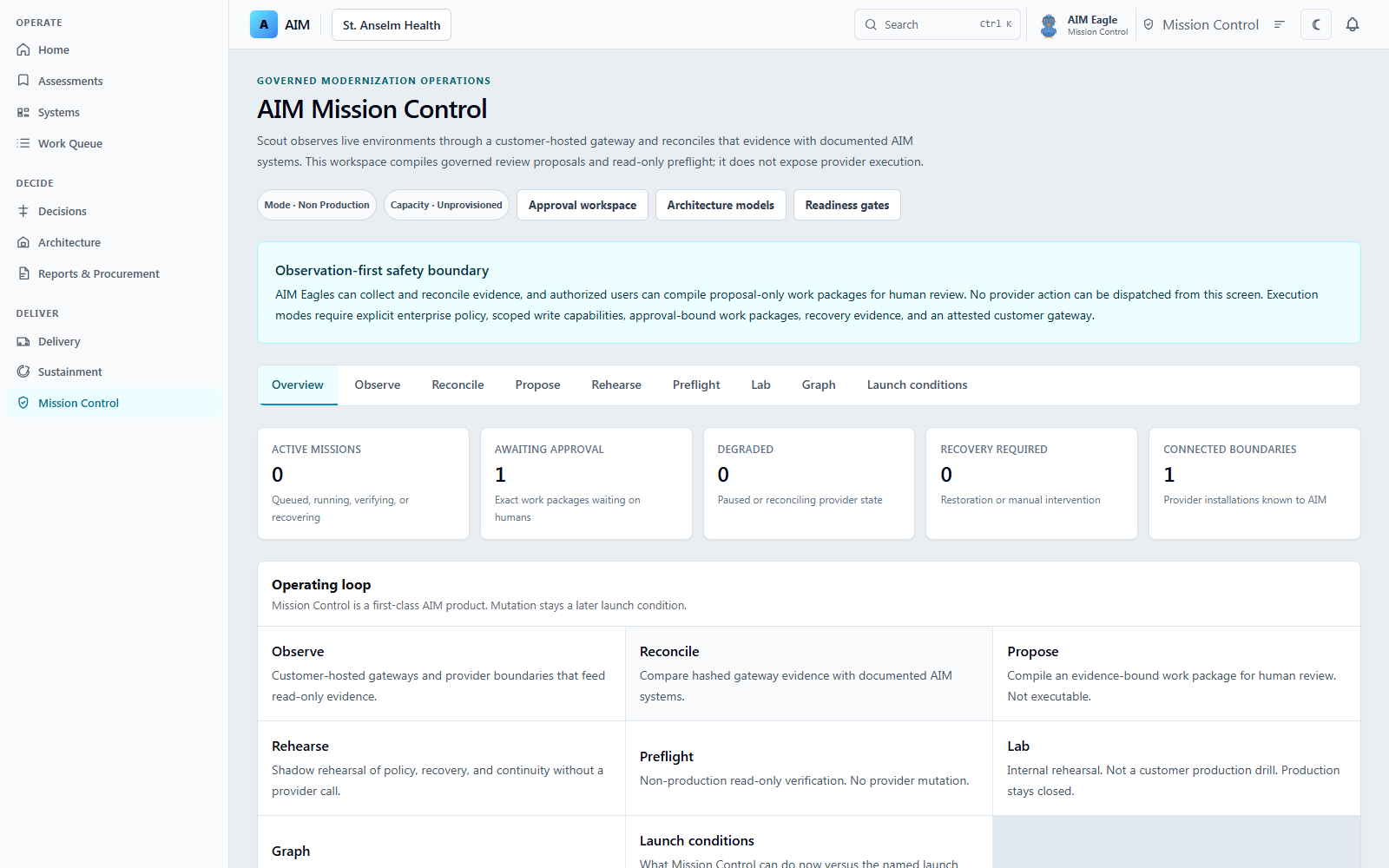
Observe, propose, and rehearse
Open Mission Control after the assessment, architecture, and (when relevant) delivery or sustainment record exist. Compile a versioned proposal from current evidence, route it to the designated authorities, and record a rationale against that exact version.
- A proposal is a review package, not a command.
- No-change rehearsals and narrowly scoped non-production boundary reads are available only when separately authorized.
- If you are asked to schedule or dispatch a live environment action and you did not explicitly intend that as a separately authorized operation, stop and contact your Owner.
Changing a live environment stays with your organization's own approval path.
Quick Reference: Inputs vs. Outputs
Inputs (your Assessment Workspace sidebar)
- Overview — assessment summary and edit access
- Constraints & Requirements — normalize constraints, update risk summary
- Smart Follow-Up — answer targeted questions to raise Signal Strength
Outputs (unlocked after Generate Recommendations)
- Recommendations — RAO-scored, ranked, constraint-cited
- Architecture Diagrams — legacy, current, target phases
- Recommended Vendors — product catalog with scoring detail
- Risks & Priorities — risk patterns and integration hot spots
- Reports & Exports — all generated documents
Collaborators are available on any assessment at any time — no recommendations required. Admins and Owners can invite external stakeholders (architects, contracting officers, agency partners) via a one-time email link. No AIM account needed. Access is scoped to that assessment only and every event is audit-logged. See Teams & Access →
Dive Deeper
How AIM Works
Public methodology: assessment, constraints, scoring, documents, delivery, and sustainment.
One Complete Decision
The sit-through tape a buyer can walk: evidence through Pulse Sustainment.
Compared with Cheap AI
AIM versus discounted models and governed-execution workflow tools.
Assessment Intelligence
How AIM derives insights, classifies archetypes, and builds the structured context package.
Constraints & RAO Scoring
How organizational constraints shape ranked technology options.
Project Pulse
Post-award delivery tracking, health scoring, and stakeholder reporting.
Pulse Sustainment
As-built baseline, change requests, and operational governance after delivery.
AIM Mission Control
Scout observation, human review packages, and no-change rehearsals. Additional capability when included in the agreement.
Agent Orchestration
How an organization’s AI can operate AIM decision work while people still sign. Separate from Mission Control.
Scoring Methodology
How AIM scores catalogued products across six core dimensions and conditionally applies Supply Chain Assurance.
Supply Chain Assurance
How AIM evaluates product-specific evidence, uncertainty, monitoring, and organizational risk tolerance.
Teams & Access
Organization roles, guest collaborators, audit logs, and multi-stakeholder model explained.
Cost Estimate Confidence
How AIM builds parametric cost models and why confidence tiers matter for procurement.
Decision Transparency
How AIM traces every recommendation back to its originating constraint and assessment data.
Ready to run your first assessment?
Create an organization workspace through enterprise onboarding, and you can have a complete assessment with scored recommendations and a target architecture diagram in a single working session.